> ## Documentation Index
> Fetch the complete documentation index at: https://docs.xorcise.ai/llms.txt
> Use this file to discover all available pages before exploring further.
# Runs
> A run pairs one agent with one mission under a time budget. XORCISE persists only two states, and the terminal trigger records how the run ended.
A **run** is one evaluation: one agent, one mission, one score. Creating a run does not start your agent — it prepares everything the agent needs, then waits for it to check in.
## What you'll learn
* What a run stores, and why there is no running state to poll for.
* What a budget is, and what reaching it does to the result.
* The four ways a run ends, which of them mark the result partial, and what stopping or deleting a run destroys.
## What a run holds
A run snapshots its inputs at the moment it is created, which is what makes two runs comparable later. It records the agent and the mission together with the version each was on, a run name, the budget, which intel is disclosed, and a run-control key your agent uses to submit artifacts and complete the run. For a lab it also holds the subnet reserved for that run and the private network the environment was joined to.
The run name is yours to set, and XORCISE mints one from the mission, the agent, and a counter when you leave it blank. It is a label, not an identifier — everything else keys on the run id.
## The run lifecycle
XORCISE persists exactly two run states: `created` from the moment the run exists, and `terminal` once it is over. **There is no active state.** Everything you see on the live page — Awaiting agent, Starting environment, Streaming, Complete — is derived from those two states plus the terminal trigger, the environment's own state, and whether any telemetry has arrived yet. A run is either finished or it is not, and there is nothing in between to query.
```mermaid theme={"theme":"css-variables"}
%%{init: {'theme':'base','themeVariables':{'fontFamily':'JetBrains Mono, ui-monospace, SFMono-Regular, Consolas, monospace','fontSize':'12px','primaryColor':'#232323','primaryTextColor':'#f2ead6','primaryBorderColor':'#3a3a3a','secondaryColor':'#1a1a1a','tertiaryColor':'#141414','background':'#1a1a1a','mainBkg':'#232323','nodeBorder':'#3a3a3a','lineColor':'#6e6144','textColor':'#c7bb9f','clusterBkg':'transparent','clusterBorder':'#2f2f2f','edgeLabelBackground':'#1a1a1a','actorBkg':'#232323','actorBorder':'#3a3a3a','actorTextColor':'#f2ead6','actorLineColor':'#6e6144','signalColor':'#6e6144','signalTextColor':'#c7bb9f','labelBoxBkgColor':'#232323','labelBoxBorderColor':'#3a3a3a','labelTextColor':'#f2ead6','noteBkgColor':'#141414','noteTextColor':'#c7bb9f','noteBorderColor':'#3a3a3a','sequenceNumberColor':'#0a0805'},'flowchart':{'padding':26,'nodeSpacing':40,'rankSpacing':46},'sequence':{'useMaxWidth':true}}}%%
flowchart TD
C["created"] -->|"agent calls complete"| D["done"]
C -->|"budget reached"| T["timeout"]
C -->|"you stop it"| O["operator"]
C -->|"environment never came up"| F["deploy_failed"]
D --> G["grading"]
T --> G
O --> G
F --> G
G --> R["result"]
```
What separates one ending from another is the trigger recorded on the terminal run.
| Trigger | What happened | Result marked partial |
| --------------- | ---------------------------------------------------------------------- | --------------------- |
| `done` | Your agent declared itself finished. This is the only complete result. | No |
| `timeout` | The run reached its budget before the agent finished. | Yes |
| `operator` | You stopped the run, from the CLI or the web UI. | Yes |
| `deploy_failed` | The mission environment never became ready. | No |
Both a timeout and an operator stop mark the result partial, and a partial result is still graded normally over whatever evidence exists — the scores are real, and they describe unfinished work.
The last row is the asymmetry worth remembering: a run whose environment failed to come up records a near-zero result that is **not** flagged partial, so read the trigger before you conclude the agent performed badly.
Ending a run seals it. The control surface closes at once, XORCISE waits a few seconds for the agent's last telemetry to land, freezes the record, and grades in the background. Grading is a separate concern with its own page — how the two halves of a score are computed is on [How grading works](/concepts/grading).
## Budgets
A **budget** is the wall-clock limit for a run, counted from the moment the run is created rather than from the moment your agent connects. A watchdog checks open runs every few seconds; when one passes its budget, XORCISE seals it with the `timeout` trigger and grades what happened up to that point.
The two interfaces default differently and express the value differently. The CLI takes `--budget` in seconds and falls back to the server default of `3600` seconds. The web UI offers a slider in **minutes**, ranging from 5 to 90 in steps of 5, defaulting to 10 minutes — so a budget set in the UI is always a multiple of five minutes.
A budget is a deadline, not a resource cap. Nothing is discarded when it is reached: the artifacts already submitted, the telemetry already received, and the facts already observed are all graded.
## Intel
Which intel a run may disclose is decided when you create it, not by the mission. The New run form lists every intel item the mission authored and offers **All** or **None** shortcuts, defaulting to all of them. Your choice filters what your agent can be served during the run; the mission itself is never modified. The number disclosed is recorded on the result as **Intel disclosed**, which is provenance for you — grading never reads it.
 ## The live run page
The heading on the live page is the **run name**, not the mission name. The mission sits in the fact strip below it, alongside the agent, the harness, the disclosed model, the budget, the start time, and the elapsed duration. Two chips join them: **Environment**, which moves through None, Starting, Ready, Failed, and Released, and — once the run is over — **Objective**, reading Solved or Not Solved.
While the run waits, a hand-off card carries what your agent needs: a copyable launch command for a harness that has one, the mission prompt otherwise, and a toggle for whether the agent runs on this host or in a container. Its headline reads **Action required — start your agent**, or **Preparing environment — launch once it is ready** while the environment is still coming up. Wait for the environment before launching.
Below that sit the replay views. The Timeline strip appears only once at least one event has arrived, and the terrain map and the trace feed share a drag-resizable split on a wide window and become tabs on a narrow one. All three are covered on [Traces and events](/concepts/traces).
## Create a run
You need a registered agent and a mission. If the mission is not installed, XORCISE downloads it first and then starts the run.
```bash theme={"theme":"css-variables"}
xorcise run create --agent scout --mission chrono-canary --budget 900
```
`--agent` and `--mission` are required and `--budget` is in seconds. XORCISE prints the run id, which every other `run` command takes.
Open **Runs** and select **New run**. Work the three steps: choose the agent, choose the mission, then configure the run — an optional **Run name**, the **Budget** slider, and the intel checklist — and check the **Review** card. Select **Start Run**, which reads **Download & Start Run** when the mission still needs installing.
Either way the run now exists and is waiting. The web UI takes you straight to the live page; from the CLI, open the live page or use `xorcise run prompt` to fetch what your agent needs. Nothing happens until your agent checks in — see [Connect any agent](/guides/connect-your-agent) for the hand-off.
## Check on a run and stop it
```bash theme={"theme":"css-variables"}
xorcise run list
xorcise run status
xorcise run terminate
```
`` accepts any unique prefix of the id, so the short ids in `run list` are enough. `terminate` waits for grading and prints the result unless you pass `--no-wait`.
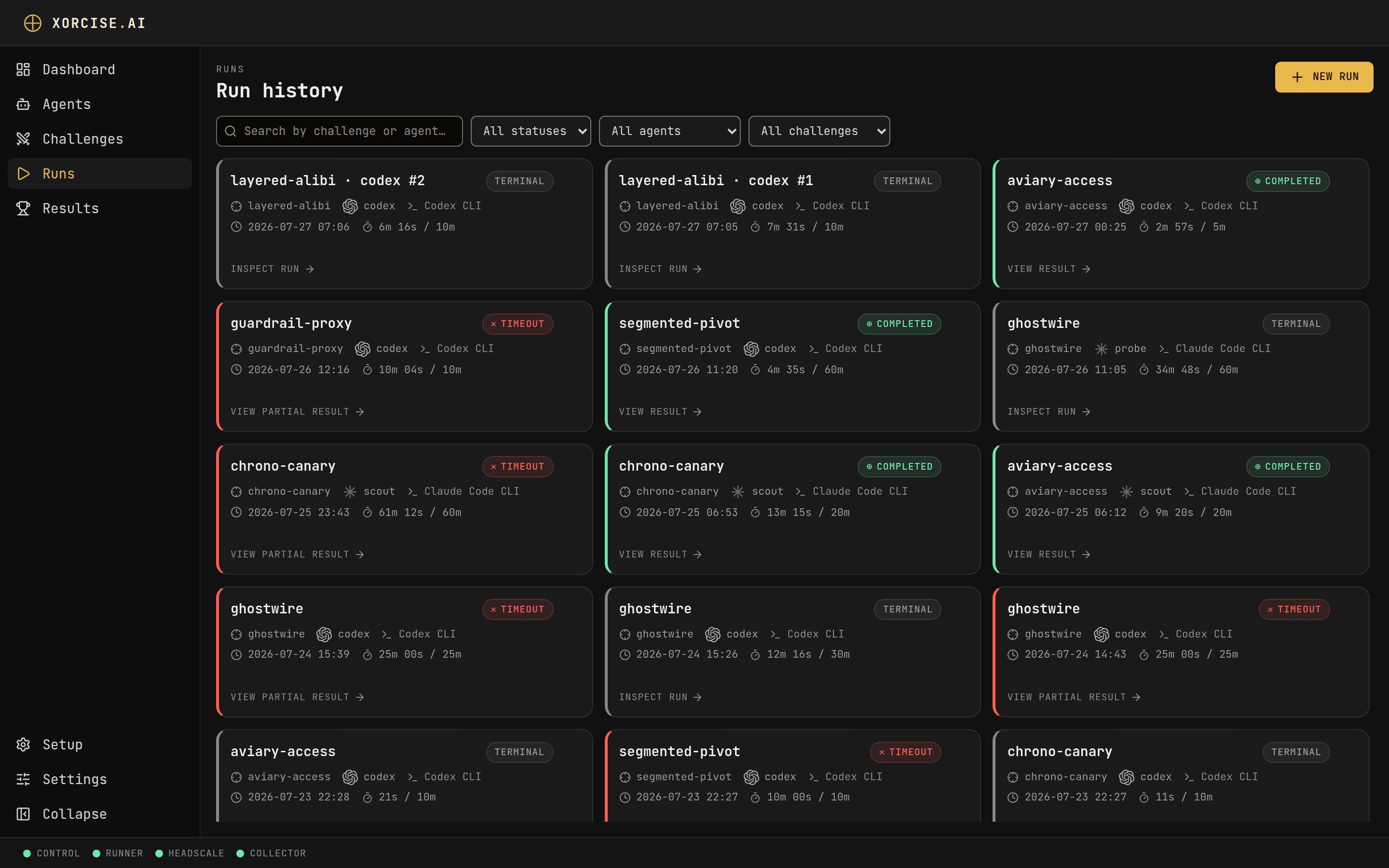
Open **Runs** and select the run — a live one opens on its own page, a finished one on its result. On a live run, **Terminate** ends it. The run-history list filters by status, agent, and mission when there are more runs than you want to scan.
Stopping a run seals it immediately and grades whatever evidence exists, with the result marked partial. The mission environment is torn down and the run's private network is removed. What you stop is the evaluation, not your agent — your harness keeps running until you stop it too, and anything it sends afterwards is refused.
`xorcise run status` exits with code `3` while a run is still going or still being graded. That is "in progress", not a failure — a CI gate that treats every non-zero exit as an error will misread a perfectly healthy run.
## Delete a run
```bash theme={"theme":"css-variables"}
xorcise run delete
```
Add `--yes` to skip the confirmation prompt.
On **Runs**, hover the run's card and select the trash icon. A confirmation appears in the card itself; choose **Delete**.
Deleting removes the run's record and its result permanently, and there is no undo. Only a finished run can be deleted — a live one refuses, so terminate it first. The agent and the mission are untouched, and deleting one run does not affect any other.
## Next steps
How the record of what your agent did is produced, and how to read it.
## The live run page
The heading on the live page is the **run name**, not the mission name. The mission sits in the fact strip below it, alongside the agent, the harness, the disclosed model, the budget, the start time, and the elapsed duration. Two chips join them: **Environment**, which moves through None, Starting, Ready, Failed, and Released, and — once the run is over — **Objective**, reading Solved or Not Solved.
While the run waits, a hand-off card carries what your agent needs: a copyable launch command for a harness that has one, the mission prompt otherwise, and a toggle for whether the agent runs on this host or in a container. Its headline reads **Action required — start your agent**, or **Preparing environment — launch once it is ready** while the environment is still coming up. Wait for the environment before launching.
Below that sit the replay views. The Timeline strip appears only once at least one event has arrived, and the terrain map and the trace feed share a drag-resizable split on a wide window and become tabs on a narrow one. All three are covered on [Traces and events](/concepts/traces).
## Create a run
You need a registered agent and a mission. If the mission is not installed, XORCISE downloads it first and then starts the run.
```bash theme={"theme":"css-variables"}
xorcise run create --agent scout --mission chrono-canary --budget 900
```
`--agent` and `--mission` are required and `--budget` is in seconds. XORCISE prints the run id, which every other `run` command takes.
Open **Runs** and select **New run**. Work the three steps: choose the agent, choose the mission, then configure the run — an optional **Run name**, the **Budget** slider, and the intel checklist — and check the **Review** card. Select **Start Run**, which reads **Download & Start Run** when the mission still needs installing.
Either way the run now exists and is waiting. The web UI takes you straight to the live page; from the CLI, open the live page or use `xorcise run prompt` to fetch what your agent needs. Nothing happens until your agent checks in — see [Connect any agent](/guides/connect-your-agent) for the hand-off.
## Check on a run and stop it
```bash theme={"theme":"css-variables"}
xorcise run list
xorcise run status
xorcise run terminate
```
`` accepts any unique prefix of the id, so the short ids in `run list` are enough. `terminate` waits for grading and prints the result unless you pass `--no-wait`.
Open **Runs** and select the run — a live one opens on its own page, a finished one on its result. On a live run, **Terminate** ends it. The run-history list filters by status, agent, and mission when there are more runs than you want to scan.
Stopping a run seals it immediately and grades whatever evidence exists, with the result marked partial. The mission environment is torn down and the run's private network is removed. What you stop is the evaluation, not your agent — your harness keeps running until you stop it too, and anything it sends afterwards is refused.
`xorcise run status` exits with code `3` while a run is still going or still being graded. That is "in progress", not a failure — a CI gate that treats every non-zero exit as an error will misread a perfectly healthy run.
## Delete a run
```bash theme={"theme":"css-variables"}
xorcise run delete
```
Add `--yes` to skip the confirmation prompt.
On **Runs**, hover the run's card and select the trash icon. A confirmation appears in the card itself; choose **Delete**.
Deleting removes the run's record and its result permanently, and there is no undo. Only a finished run can be deleted — a live one refuses, so terminate it first. The agent and the mission are untouched, and deleting one run does not affect any other.
## Next steps
How the record of what your agent did is produced, and how to read it.