

What you’ll learn
- What a mission carries, and which parts of it the score is built from.
- How a lab mission and a static mission differ, at ingest and at run time.
- Where missions come from, and what pulling one actually does.
What is inside a mission
The grading parts come first, because they are the ones that decide a score.- Objective — the task, written for the agent. XORCISE renders it into the connect prompt, substituting the resolved target address wherever the objective names one.
- Expected artifacts — what the agent must submit. The flag is an artifact named
flag, nothing more; there is no separate flag field and no answer hash. Marking an artifact required changes the wording in the prompt, not the score. - Rubric — the criteria the judge assesses, each with a weight.
- Deterministic checks — assertions XORCISE evaluates itself against the sealed run record.
- Intel — optional help the agent can ask for during a run. Which intel is available is decided per run, not by the mission.
- Environment — a compose file and the networks the agent may reach. Labs only.
- Attachments — companion files the mission ships. A static mission needs at least one.
- Terrain — the authored attack path: the hosts, the links between them, and which one holds the objective.
- Catalog metadata — summary, specialty, proficiency, skills, and technologies. These drive browsing, and the summary is deliberately never shown to the agent.
Two types of mission
Every mission declares one of exactly two types, and the type is an execution class rather than a genre. A lab ships an image and a compose file. Starting a run brings the environment up as containers and joins them to a network private to that run, so the agent works against a live target it reaches over the network. A static mission has no image, no compose file, and no network. It ships at least one attachment — a capture, a binary, a disk image, a log bundle — and the agent works entirely from what it downloads.
Everything else is identical. Both types use the same run-control surface to submit artifacts, request intel, fetch attachments, and complete the run, and both are graded exactly the same way. An
environment block left on a static manifest is warned about and ignored — it is never deployed.
Where missions come from
There are two sources, and a mission belongs to exactly one of them for as long as it is installed. The XORCISE library is the source this release supports; Your Own is the source ingestion will populate once that capability ships.
The library needs no API key, no account, and no sign-in of any kind. Connect it once and browse. Nothing about a run is uploaded when you pull; the traffic goes one way, and the mission then runs locally on your own machine.
A third tab, Other providers, is a declared coming-soon state rather than a source: pulling missions from a registry other than the XORCISE catalog is not built. It says so and points back at the library, so an empty tab there is never confused with a search that matched nothing.
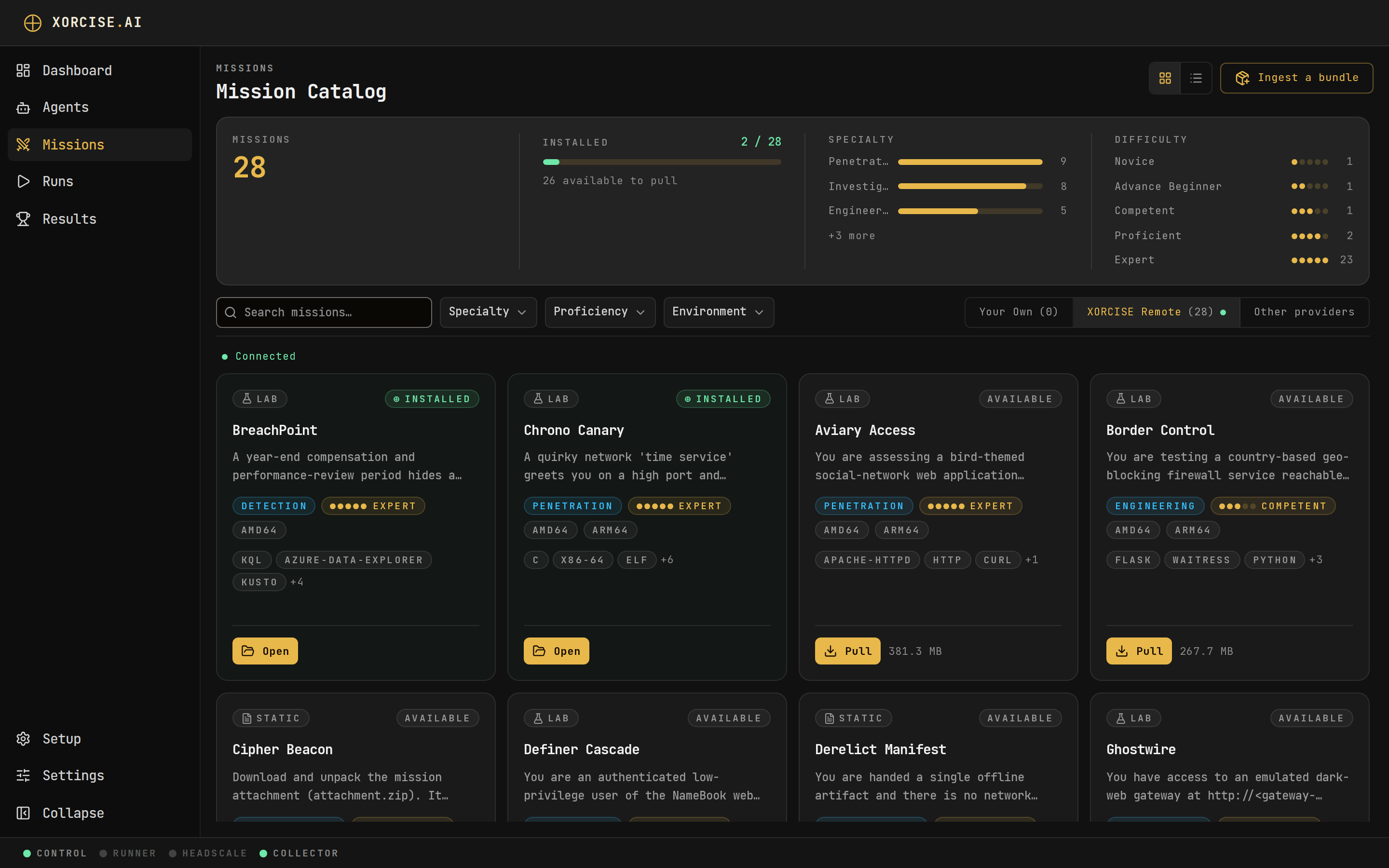
The Mission Catalog. The strip along the top counts what is installed against what is available; each card carries its type, specialty and proficiency.
Browsing the catalog
The catalog page opens on a library-stats strip: the total number of missions, how many of them are installed asN / M with a progress bar, how many remain to pull, the leading specialties as labelled bars, and all five proficiency tiers — Novice, Advance Beginner, Competent, Proficient, and Expert — each with a count. All five are always drawn, including any sitting at zero, so the ladder reads as a consistent scale.
Below that sits a sticky filter bar: a search box that matches name, summary, and id, then Specialty and Proficiency facets. Each facet lists its values with the number of missions behind them, and the semantics are what you would expect — several values inside one facet widen the results, while two active facets narrow them. Active filters appear as removable chips under a Filtering by label, and Clear filters resets them. A view toggle switches between the card grid and a denser list, and remembers your choice.
Every card carries the two badges you need before you commit to a pull: an environment badge reading Lab or Static, and a proficiency meter drawn as five pips rather than a colour. Alongside them sit the specialty, whether the mission is installed or available, the download size for one you have not installed, and a custom badge on your own work.
Opening a mission shows its objective, its description, its skills and technologies, its expected artifacts, its rubric, its deterministic checks, its intel behind reveal controls, its attachments, and its terrain. The terrain here is not a simplified preview: the page draws the same map the live run view uses, projected from the mission’s manifest with no run attached, so what you study before pulling is exactly the graph a run of it starts from. The environment section names Lab or Static and one sentence explaining which — the compose file, the entry networks, and the image reference are deliberately not shown. Read the mission’s own bundle if you need those.
A mission you have already installed also shows whether the library has moved past your copy, and the action that catches it up. See Keep a mission current.
What a pull will cost
Every surface where you decide to pull quotes the download first: the mission card and detail page in the console, the Size column inxorcise mission list, and the Download line in xorcise mission show. The console’s card tooltip splits it into image and attachments.
Treat the figure as a ceiling rather than a prediction. Missions share base layers, so a pull that reuses layers already on disk transfers less than the quote. A mission whose size the library does not carry reads as unknown, never as 0 B, and an installed mission quotes no size at all — its bytes are already on disk.
What a pull does
Pulling installs a library mission locally: it downloads the mission image, unpacks the delivery bundle including any attachments, and registers the manifest. XORCISE reports the work in phases, in this order: Resolving…, Preparing image…, Downloading image…, Extracting image…, Downloading files…, Installing…, and finally Installed. Before any byte moves, XORCISE picks the architecture to run. A host with a native image available gets it — an Apple Silicon or other ARM64 machine runs a nativearm64 mission rather than emulating an amd64 one. A mission with no native image for your host runs amd64 under emulation. The server logs a warning when it falls back, and the mission’s page in the web UI marks the installed platform as emulated; the CLI prints no notice. That works on an Apple Silicon Mac through Docker Desktop’s Rosetta, but not on an arm64 Linux host, which cannot run an amd64 mission nested: XORCISE refuses to create the run, and names the platforms involved. A mission with nothing your host can execute is refused up front, naming what it does support, rather than failing after the download. The platform that actually landed is recorded in the install and carried into the run’s evidence and its report.
A first pull downloads a whole container image and can take several minutes. Pulling the same mission again is a safe no-op. While a pull is running, Cancel stops it; a cancelled pull installs nothing and is not treated as a failure.
Layers Docker already has produce no byte progress, so the bar can sit still or a total can grow underneath it while the pull is entirely healthy. Read the phase caption, not the percentage — as long as it is advancing, so is the pull.
Install a mission from the library
Both interfaces end with the mission installed and runnable.- CLI
- Web UI
Ingest your own bundle
Coming soon. Installing a mission from your own bundle is not enabled in this release. Neither user-facing path ingests anything yet:
xorcise mission ingest prints a coming-soon notice and exits, and the Ingest a bundle button on the Missions page opens a preview of the feature instead of a directory picker. The bundle format is documented below and in full in the mission manifest reference so you can prepare bundles ahead of the release. To get missions today, pull them from the free XORCISE library — xorcise mission list and xorcise mission pull <id>, or the XORCISE Remote tab on the Missions page.mission.json at its root. Ingesting will validate that manifest, build the image the environment describes, and install the result under Your Own.
- CLI
- Web UI
The command still exists, but it is gated:Every form of it — with a path, or without one — currently prints the same notice and installs nothing:
Keep a mission current
A mission carries its creator’s own version, and the library’s copy can move ahead of yours — either because the creator shipped a new version, or because the fleet was rebuilt onto a newer base image. An installed mission compares the artifact it recorded against the one the library now serves and reads Update available only where they actually differ. One action clears it, whichever reason caused it:- CLI
- Web UI
'Chrono Canary' is already up to date.Do not delete a mission to get a newer copy of it. Deleting and re-pulling was the old remedy;
mission update replaces it, in one step and with no window where the mission is not installed.Remove a mission
- CLI
- Web UI
--yes to skip the confirmation prompt. Add --purge to remove the mission’s image as well.--purge, or tick Also remove its image in the Web UI. Either way, the image stays when something else still uses it, such as another install, an unfinished run, or a container.
Free disk space
A mission image is 1 to 3 GB. Uninstalling a mission keeps its image, and an update keeps the previous version, so unused images add up. To find the mission images nothing uses any more, and remove them:- CLI
- Web UI
--yes to remove them.xorcise mission prune covers what counts as a mission image and the exit codes.
Do not use
docker system prune -a to reclaim this space. It removes every unused image on the host, not only XORCISE’s.Next steps
Runs
Pair an agent with a mission, and follow the evaluation from creation to a sealed result.