

What you’ll learn
- How to take an agent from registered to graded without stopping to read theory.
- What XORCISE hands you when a run starts, and what your agent has to do with it.
- How to read the one number a run produces, and why it may be lower than you expect.
1. Register your agent
An agent is a named record. It tells XORCISE what it is evaluating and how to replay that agent’s telemetry; XORCISE never launches the agent for you. Every agent has a harness. The CLI savesgeneric when you leave it out, and the register form preselects none, so you choose Generic there. A generic agent runs through the generic replay adapter, which is enough for a first run. The built-in harnesses are OpenHands, Claude Code CLI and Codex CLI — Agents covers what choosing one changes.
- CLI
- Web UI
scout listed on the Agents page.
Output
2. Pick a mission
A mission is an environment plus the rules for grading it. In this release missions come from one place: the free XORCISE library. It needs no account, no key and no sign-in. List what the library offers first, then pick one.Ingesting a mission bundle you wrote yourself is coming soon.
xorcise mission ingest is not active in this release, and the Ingest a bundle button on the Missions page opens a preview of the feature rather than installing anything. Until it ships, browse the library with xorcise mission list and install with xorcise mission pull <id>.- CLI
- Web UI
Installed or Available.
Output
chrono-canary. If your catalog offers something else, substitute its id everywhere chrono-canary appears — every step below works the same way.
3. Create the run
A run pairs one agent with one mission. It also carries a budget — the wall-clock limit for the whole evaluation, after which XORCISE seals the run and grades what happened so far. Budgets are covered on Runs.- CLI
- Web UI
Output
4. Connect your agent
A fresh run waits for your agent to check in, and XORCISE gives you two things to make that happen. The connect prompt is the mission text plus the instructions your agent needs: how to join the run’s network, how to submit findings as artifacts (the flag is the artifact namedflag), and how to end the run. It carries the run id, which is what ties your agent’s work back to this run. Connect any agent covers the full contract.
The launch profile is the set of OpenTelemetry environment variables your harness must have exported before it starts, so that its traces land in this run. Send traces and logs covers it per harness.
- CLI
- Web UI
Output
Launch mode is the number-one cause of “no traces”. Container mode bakes
host.docker.internal into the telemetry endpoint, and that name does not resolve from a plain terminal on your host. If you start the agent from a shell on this machine use host mode, which is what xorcise run launch-cmd defaults to; if you start it inside a container, use container mode. The live page exposes both through the Running the agent on: toggle.5. Watch it work
The live run page has three views, and its heading is the run name rather than the mission name. The Timeline places every event on one rail so you can see the shape of the run, and it renders only once at least one event has arrived. The Terrain map draws the mission environment as your agent discovers it. The Trace feed is the running narrative — commands, reasoning, tool calls and their output. Above 1280 pixels Terrain and Trace sit side by side in a split you can drag; below that they become tabs.- CLI
- Web UI
seq N: … line per record, then the total.
Output
6. Finish the run
A run ends in one of two normal ways. Your agent calls the run’scomplete endpoint when it decides it is done — that instruction is in the connect prompt. Or you end the run yourself, which grades it on whatever happened so far. Either way XORCISE seals the evidence and grading starts automatically.
- CLI
- Web UI
Output
7. Read the score
Grading is asynchronous, so the score appears a few seconds after the run seals.- CLI
- Web UI
Output
overall is the number that matters here: 0.90 — 89.6% rounded to two decimals. The command prints more below it — the artifacts your agent submitted and the conditions the run was scored under — and the result page shows the same figures as a scorecard. How grading works explains every one of them, including the arithmetic that produced it. Ask before grading finishes and you get a plain “not ready yet” message and exit code 3, which means still in progress, not failed.
With no judge model configured, the highest score any run can reach is 50%. The judge half scores
0.0, and that zero is still averaged in — the deterministic half is not rescaled to compensate. The run above would read 42.5% instead of 89.6%. That is not a failed agent; it is half a score. xorcise run status names the cause on the line under the scores: JUDGE DEGRADED — model-not-configured: the judge half did not run and contributed 0.00 to overall. Configure a judge and re-evaluate the run — the evidence is already sealed, so you never have to run the agent again.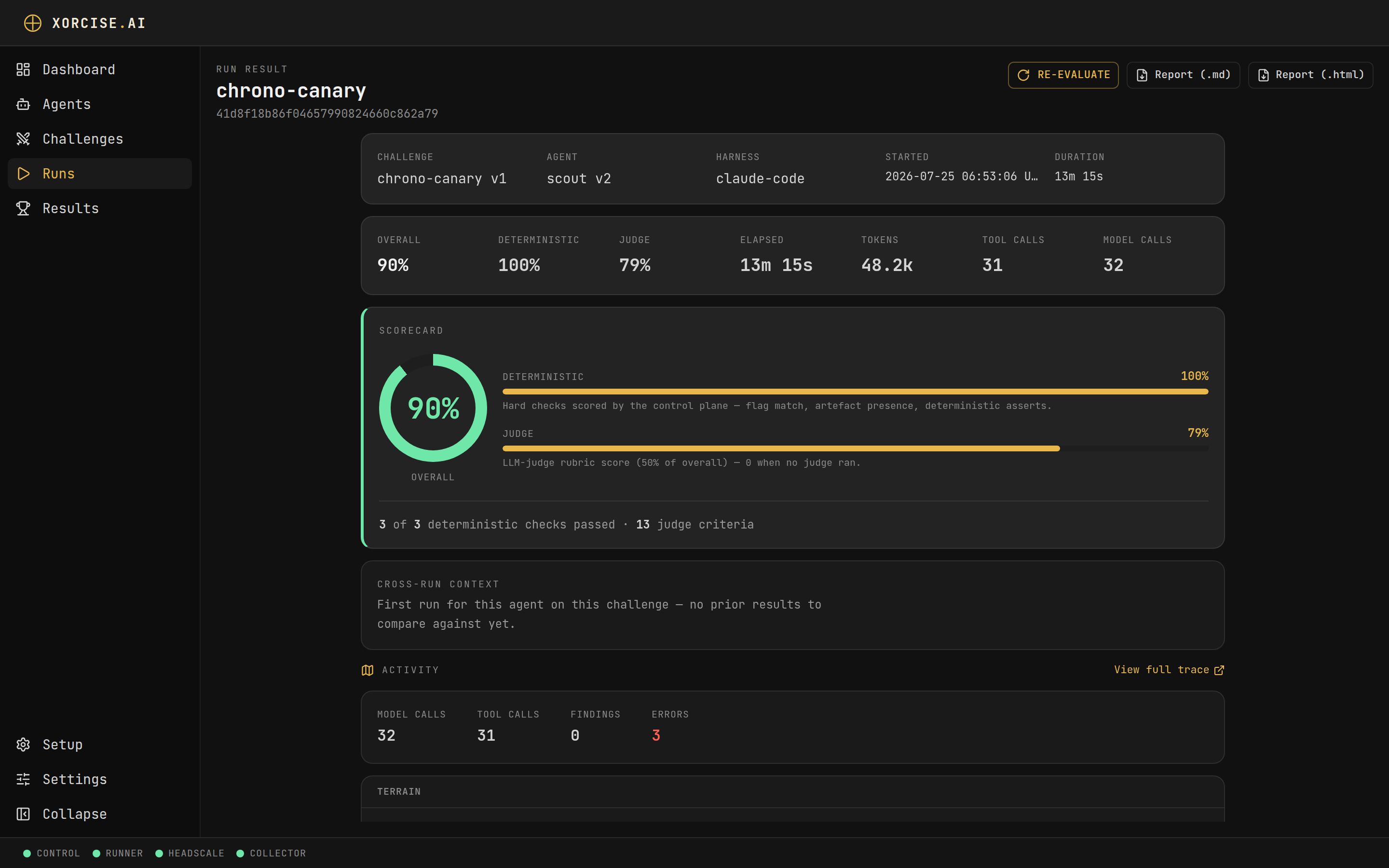
The result page. The two halves are always shown separately, so you can see which one carried the score.
What you did
Each step you took has a name, and each name has a page:- You registered the record XORCISE evaluates — see Agents.
- You picked an environment that carries its own grading rules — see Missions.
- You created a run and gave it a budget — see Runs.
- You handed your agent a connect prompt and a launch profile, and it streamed telemetry back — see Traces and events.
- XORCISE sealed that evidence and turned it into one number — see How grading works.
xorcise up, and where everything above actually happened.
Next steps
How XORCISE works
One local process, two planes, and the containers behind a run.