

Before you start
- Python 3.12 or newer, with
pipor uv. - Docker, with the daemon running and the Docker Compose v2 plugin installed. On Debian and Ubuntu that is
sudo apt install docker.io docker-compose-v2.
Install
PATH:
Start XORCISE
1
Check your host
doctor reports every prerequisite and prints the exact fix for anything that is missing or wrong.Output
doctor exits 1. The next step creates the directory. Any other ✗ is real, and its remediation text tells you what to do.2
Start it
Output
~/.xorcise, writes a starter config, and prepares the database, so it takes longer than later ones. Ports move up to the next free port when something else holds them, so use the URL up prints rather than assuming 3001.Running xorcise up again while XORCISE is already running prints already running — UI at <url> and exits 0. Re-running it is safe.3
Open the web UI
Open the URL from the previous step in your browser.
xorcise ui prints it again at any time.On a fresh install the home page is a Get started checklist. It becomes the Dashboard once you have your first run.4
Confirm it is healthy
Output
status probes the REST API, the OTLP receiver, and the Docker daemon, and exits 1 if any of them is down.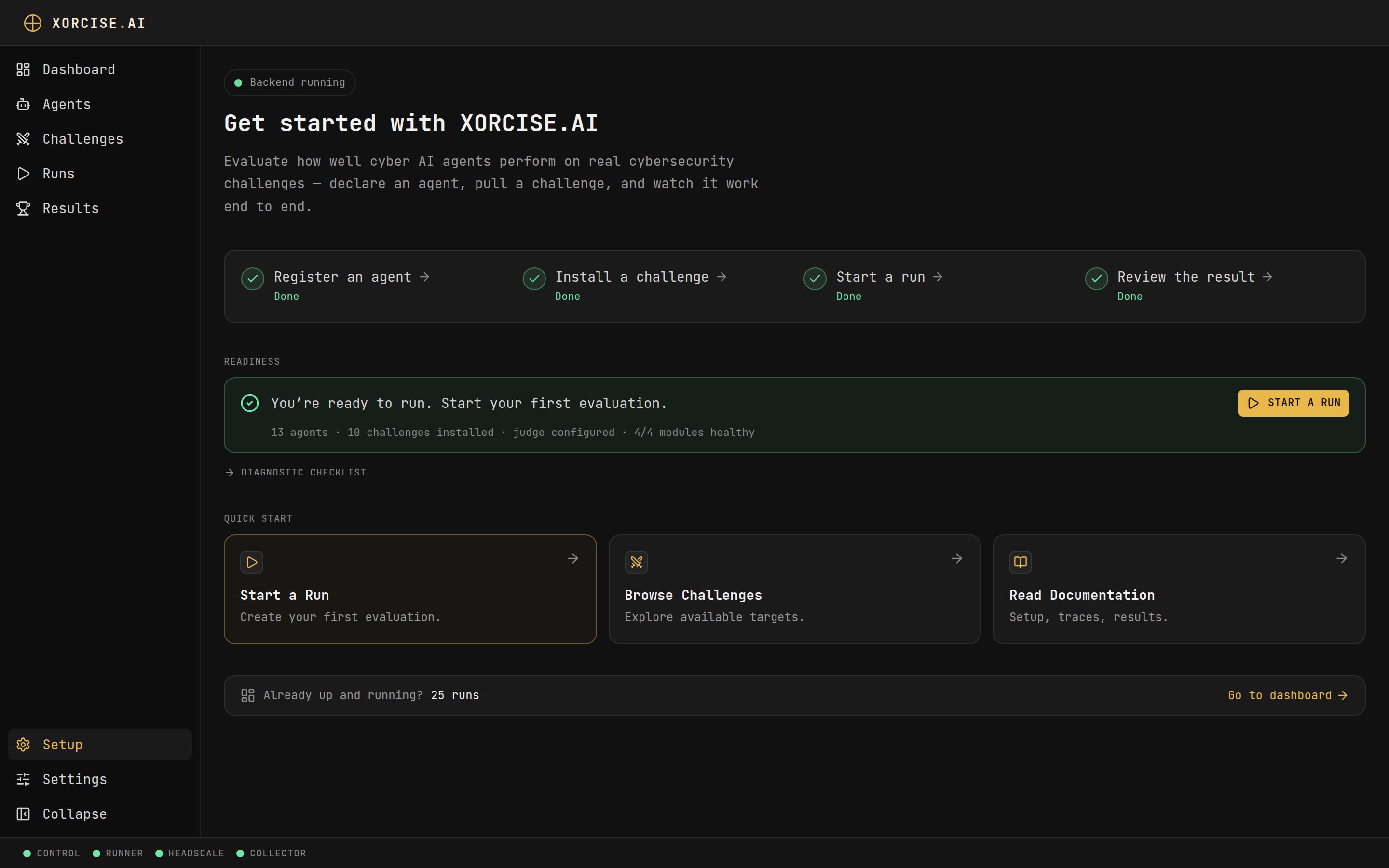
The Get started page once XORCISE is up. The readiness line is the fastest way to confirm the install is sound before you create a run.
Stop XORCISE
down stops XORCISE, removes leftover mission containers, and tears down the local mission network. It keeps your config, your API keys, your installed missions, and every run and result.
xorcise down --keep-data stops XORCISE and removes leftover mission containers, but skips the Headscale teardown, so the local mission network stays up.
Next steps
Your first run
Register an agent, pick a mission, and end holding a real score.